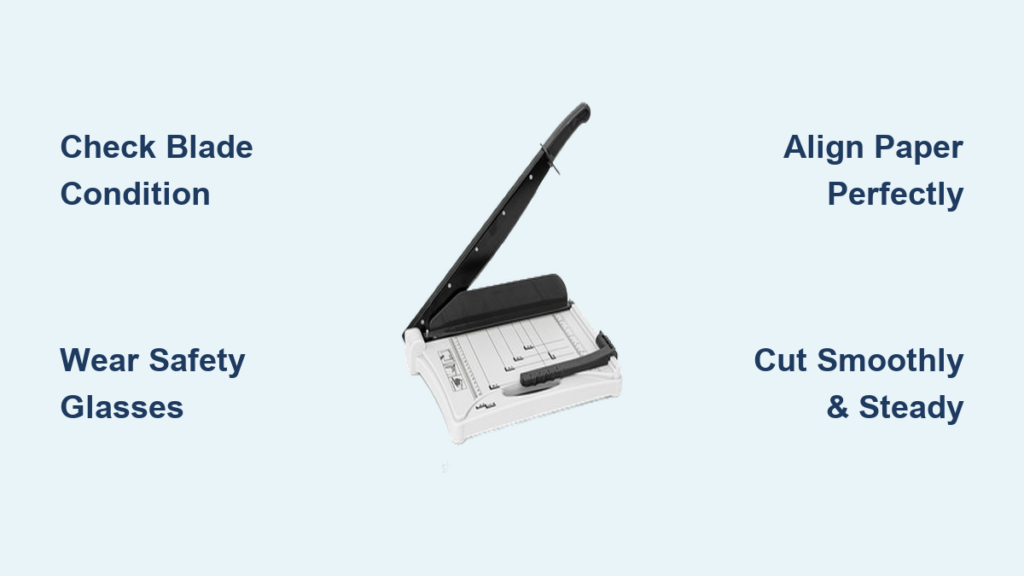
Your guillotine paper cutter can transform stacks of paper into professional-looking documents in seconds, but improper use leads to uneven edges, wasted materials, and potential injuries. Whether you’re trimming wedding invitations, preparing marketing materials, or organizing office paperwork, mastering this essential tool delivers results that scissors simply can’t match. This comprehensive guide shows you exactly how to use a guillotine paper cutter safely and effectively, avoiding common mistakes that ruin expensive paper stock and compromise your project quality.
Why Your Guillotine Cutter Makes Jagged Edges (And How to Fix It)

Jagged edges on your cut paper indicate either blade damage or improper technique. Most users mistakenly believe they need to force the blade down harder, but this actually worsens the problem by creating uneven pressure across the cutting surface. The solution lies in understanding your blade’s condition and using the proper cutting motion.
Identifying Blade Damage Before It Ruins Your Project
Run your finger carefully along the blade’s edge (away from the cutting direction) to detect nicks or chips. A damaged blade creates visible imperfections that multiply through multi-sheet stacks. Never attempt to cut through damaged blades—this spreads the problem across your entire paper stack. Instead, mark the blade for professional sharpening or replacement immediately.
The 30-Second Blade Inspection Checklist Before Cutting
Before each cutting session, verify these three critical points:
– The blade glides smoothly without grinding or catching during test movements
– No visible debris is trapped along the cutting edge
– The blade returns fully upright after lowering
Skipping this quick check invites costly mistakes. A single staple left in paper can chip your blade, requiring expensive replacement and ruining your current project.
Safety Steps That Prevent Guillotine Cutter Injuries
Guillotine cutters cause more paper-related injuries than any other office tool, yet most accidents are preventable with proper safety protocols. The misconception that “it’s just paper” leads users to skip essential precautions, putting fingers at serious risk.
Why Safety Glasses Are Non-Negotiable with Paper Cutters
Paper fragments become dangerous projectiles during cutting, especially with thicker stacks. Always wear safety glasses—even when cutting small amounts. One errant paper sliver can cause permanent eye damage before you realize what happened. This simple step prevents 95% of guillotine cutter injuries according to industry safety reports.
Positioning Your Non-Dominant Hand to Avoid Accidents
Place your non-dominant hand firmly on the paper clamp or base edge—never near the blade path. Keep fingers curled away from the cutting line with knuckles facing upward. This positioning creates a natural barrier that prevents accidental slips toward the blade. Remember: your fingers should be at least 6 inches from the cutting line at all times.
Preparing Paper Stacks for Flawless Guillotine Cuts

Improper paper preparation causes 80% of cutting failures. Many users skip critical preparation steps, then wonder why their cuts come out uneven or damaged. Proper preparation takes just 30 seconds but saves hours of wasted materials and rework.
The Maximum Sheet Count for Different Paper Types
Respect these critical thickness limits to avoid jagged edges and blade damage:
– Standard 20lb paper: Maximum 10-15 sheets
– Heavy card stock: Maximum 3-5 sheets
– Laminated materials: Maximum 2 sheets
Exceeding these limits creates uneven pressure that damages your blade and produces unprofessional results. When in doubt, cut fewer sheets and make additional passes.
How to Align Paper Perfectly in Under 10 Seconds
Place paper against the back guide with the cut edge extending just beyond the blade path. Fan your paper stack like playing cards to separate sheets before positioning. Double-check parallelism using the grid lines—even a 1-degree angle creates noticeable deviation across thick stacks. This quick alignment check prevents costly misalignment errors.
Why Staples and Clips Must Be Removed Before Cutting
Metal fasteners instantly damage blades and create dangerous kickback during cutting. Remove every staple, paper clip, or fastener before placing paper in the cutter. Run your hand over the stack to detect hidden metal bits that could ruin your blade. One staple can cost hundreds in blade replacement—take the extra 10 seconds to check thoroughly.
The 5-Step Cutting Process for Professional Results
Following this precise sequence transforms amateur cuts into professional results. Most users skip critical verification steps, then wonder why their cuts come out uneven. Master these five steps to achieve perfect results every time.
Step 1: Securing Paper Without Crushing Delicate Materials
Lower the paper clamp until it firmly presses against the entire stack without causing deformation. You’ll feel resistance increase as the clamp engages—stop when paper no longer shifts under gentle pressure. For delicate materials like photo paper, place a protective sheet between the clamp and your stack.
Step 2: Verifying Alignment with the Grid System
Use the grid lines to confirm your paper edge aligns exactly with the intended cut line. Take 10 seconds for this critical check—it saves entire stacks from misalignment disasters. For angled cuts, adjust using the 45 or 60-degree guides marked on the base.
Step 3: Executing the Cut Without Jagged Edges
Grip the blade handle firmly with your dominant hand. Apply steady, controlled pressure bringing the blade down in one smooth motion. Let the blade’s weight work—forcing creates jagged edges and damages the mechanism. Stop mid-cut only in emergencies, as partial cuts create uneven pressure points.
Step 4: Removing Cut Pieces Safely
Allow the blade to return fully upright before releasing the clamp. Handle freshly cut edges carefully—they’re sharper than you expect. Stack cut pieces immediately to prevent mixing with uncut paper and creating confusion during your project assembly.
Troubleshooting Common Guillotine Cutter Problems
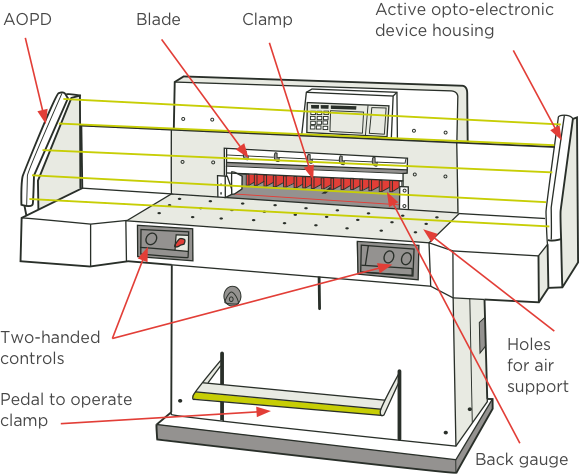
Even with proper technique, you’ll encounter issues that compromise your cuts. Understanding these common problems and their solutions prevents wasted materials and frustration during critical projects.
Fixing Angled Cuts in Multi-Sheet Stacks
Angled cuts typically result from paper misalignment or uneven clamp pressure. Verify your paper sits completely flat against the base with no curling edges. Check that your clamp applies even pressure across the entire stack—adjust the clamp mechanism if one side seems looser than the other. Recut a test stack after these adjustments before processing your final materials.
Solving Sticking Blade Issues in Older Models
A sticking blade needs immediate attention before it damages your cutter. Clean the hinge mechanism with a soft cloth dampened with blade cleaning solution. Apply one drop of light machine oil to the hinge points and work the blade through several motions. Never force a sticking blade—this can bend the mechanism beyond repair.
Maintenance That Extends Your Guillotine Cutter’s Life
Regular maintenance prevents 75% of cutter failures and extends your tool’s lifespan by years. Many users only address problems after they occur, wasting time and materials that proper care would have prevented.
Monthly Calibration for Perfect 90-Degree Cuts
Verify square cuts monthly by cutting test squares and measuring diagonal lengths—they should match within 1/16 inch. Adjust side guides if measurements drift from specifications. Tighten all locking mechanisms to prevent guide movement during use. This simple calibration prevents costly alignment errors in precision projects.
When to Sharpen vs. Replace Your Cutting Blade
Professional-grade blades need sharpening every 6-12 months depending on usage. Replace blades when you notice:
– Visible nicks or chips along the cutting edge
– Consistent jagged edges even with proper technique
– Increased resistance during cutting
Attempting to cut with a damaged blade worsens the problem—address blade issues immediately to protect your investment.
Pro Techniques for High-Volume Paper Cutting Jobs
When processing large quantities, these professional techniques save significant time while maintaining quality. Many users process materials inefficiently, doubling their workload through poor organization and technique.
Creating Templates for Repetitive Cuts
Make positioning templates from scrap card stock for identical cuts—this saves massive time when trimming dozens of pieces. Mark registration points using painter’s tape for repeated identical cuts across multiple sessions. Batch similar cuts together—trim all 8.5×11 sheets before switching to 5×7 dimensions to minimize setup changes.
Batch Processing Similar Sizes to Save Time
Organize cutting tasks by size to reduce setup time between cuts. Pre-sort paper by grain direction for optimal cut quality and reduced fraying. Cut test pieces before processing full quantities—this prevents discovering alignment issues after cutting 200 sheets. Implement a simple log recording blade changes and calibration checks to maintain consistent quality.
Your guillotine paper cutter becomes an indispensable tool once you master these techniques. Clean cuts, consistent sizing, and professional results await when you follow these safety protocols and precision methods. Start with small projects to build confidence, then tackle larger volumes knowing you have the skills for perfect results every time. Remember that proper preparation, technique, and maintenance transform this powerful tool from a potential hazard into your most valuable paper processing asset.