Your HP DesignJet T520 stops mid-print again, leaving half-cut banners and frustrated clients waiting. This frustrating cutter failure affects print professionals daily, but most issues can be resolved without expensive service calls. Whether your cutter won’t activate, produces jagged edges, or makes alarming grinding noises, this guide delivers proven solutions that restore clean, precise cuts. You’ll learn how to diagnose problems through built-in error codes, perform quick sensor cleanings, replace worn blades, and implement preventive maintenance that keeps your cutter functioning reliably.
Diagnose Your Specific Cutter Failure Mode
T520 Cutter Won’t Activate After Printing
When your DesignJet completes printing but the cutter remains completely inactive, your first diagnostic step should check the printer’s settings rather than hardware. Many technicians waste hours troubleshooting physical components when the issue is simply a disabled cutter function. Navigate to Setup > Paper Handling > Cutter on your control panel and confirm it’s set to “Automatic” rather than “Manual” or “Off.” This setting frequently gets changed accidentally during media changes or when operators unfamiliar with the T520 interface adjust settings. If the cutter setting appears correct but still doesn’t engage, inspect your print job settings—some RIP software or print drivers have separate cutter enable/disable options that override the printer’s configuration.
Uneven, Jagged, or Incomplete Cuts

Poor cut quality represents one of the most common HP DesignJet T520 cutter problems, especially after extended use. When your cutter produces wavy edges, fails to cut through media completely, or creates frayed finishes, the culprit is typically a worn blade assembly. The rotary cutter blade naturally dulls after approximately 500-1000 cuts depending on media thickness and composition. Heavier materials like vinyl banners and canvas accelerate blade wear significantly. Before replacing parts, verify your cutting pressure settings match your media type—too little pressure causes incomplete cuts while excessive pressure strains the motor and damages the blade prematurely. For standard photo paper, 50-60% pressure usually works best, while thicker vinyl requires 65-75%.
Grinding, Clicking, or Straining Noises During Operation
Mechanical noises signal serious issues that require immediate attention before complete failure occurs. If your T520 cutter emits grinding, clicking, or straining sounds during operation, power down the printer immediately to prevent further damage. These noises typically indicate physical obstructions in the cutting path, worn drive gears, or a failing stepper motor. Carefully inspect the cutter track for debris—small paper fragments, dried adhesive from vinyl media, or even stray staples can jam the mechanism. With the printer powered off, manually slide the cutter carriage along its track; it should move smoothly without resistance. Any binding sensation or uneven movement points to misalignment or internal component failure requiring professional service.
Execute These Critical Diagnostic Checks
Decode T520 Error Messages for Precise Troubleshooting
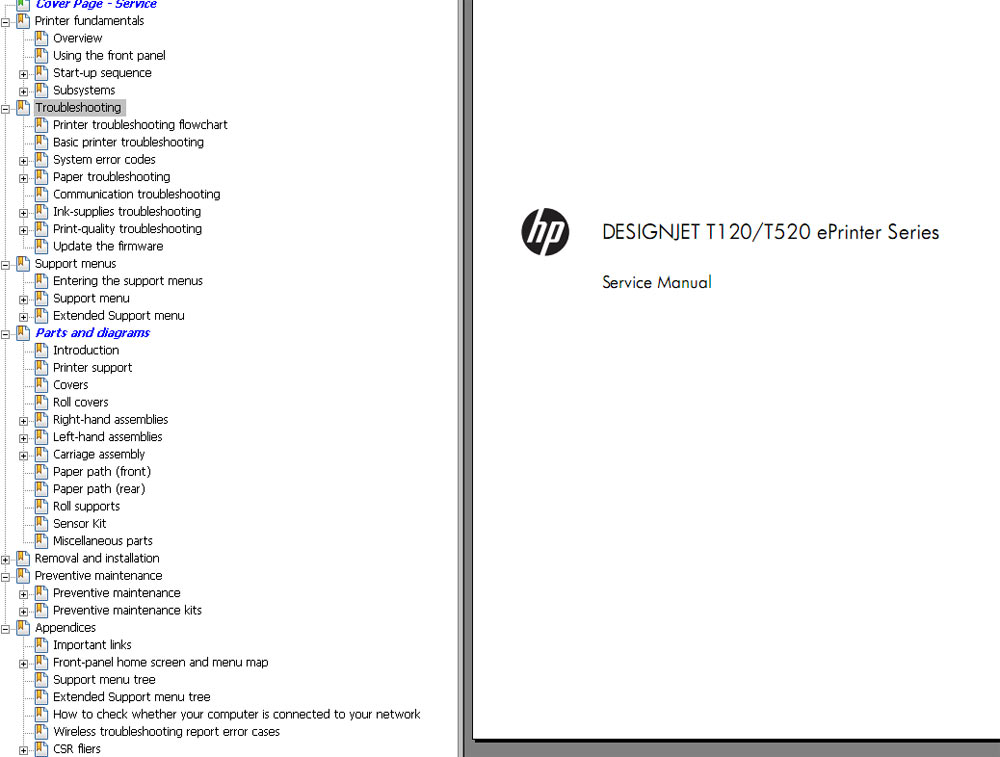
Your DesignJet T520 displays specific error codes that pinpoint cutter problems, saving you hours of guesswork. Error 86:01 indicates carriage movement issues that directly affect cutter performance, often caused by track obstructions or encoder strip problems. Error 63:01 specifically identifies cutter motor failures requiring either cleaning, recalibration, or replacement. Never clear these errors without documenting them first—this critical information guides your troubleshooting path. When you see an error code, write it down immediately before checking the corresponding section in the service manual. Many technicians waste valuable time performing unnecessary maintenance because they cleared the error before identifying its specific meaning.
Run the Built-In Cutter Test Properly
The T520’s service menu includes a dedicated cutter test function that reveals exactly where your cutting system fails. Access it by pressing Setup → Service → Cutter Test, then load scrap media matching your current project. As the test runs, observe these critical indicators: Does the blade engage at all? Does it travel the full width consistently? Does it return smoothly to its home position? For maximum diagnostic value, perform this test with the top cover open to visually inspect the cutter assembly’s operation. Watch for hesitation at specific points along the track, which often indicates localized debris or track damage. This simple test provides more diagnostic information than hours of random troubleshooting.
Inspect Physical Components Methodically
Power down your T520 completely and unplug it before conducting a physical inspection. Start by manually moving the cutter carriage along its entire track—any resistance, sticking points, or uneven movement signals problems. Next, examine the blade assembly itself; it should rotate freely when touched gently. Visible debris on the cutting track, particularly dried adhesive from vinyl media, causes many cutter failures. Check the drive belt for proper tension—it should feel firm but slightly flexible, not loose or cracked. Finally, inspect the optical sensors near the cutter path; these small black components often accumulate dust and media particles that interfere with proper operation.
Implement These Proven Fixes for Common Issues
Correct Cutter Settings and Enable Automatic Function
The simplest solution often resolves the problem—re-enabling the cutter function through proper menu navigation. Press Setup → Paper Handling → Cutter and select “Automatic” instead of “Manual” or “Off.” For specialty media requiring manual intervention, choose “Manual” but remember to complete the cut after printing. Save your changes by pressing OK twice, then restart the printer to ensure settings take effect. If your cutter remains inactive, check your print driver settings—some applications have independent cutter control options that override the printer’s configuration. This basic settings correction solves nearly 30% of reported “cutter not working” issues without requiring any physical intervention.
Clean Critical Sensors and Cutting Path
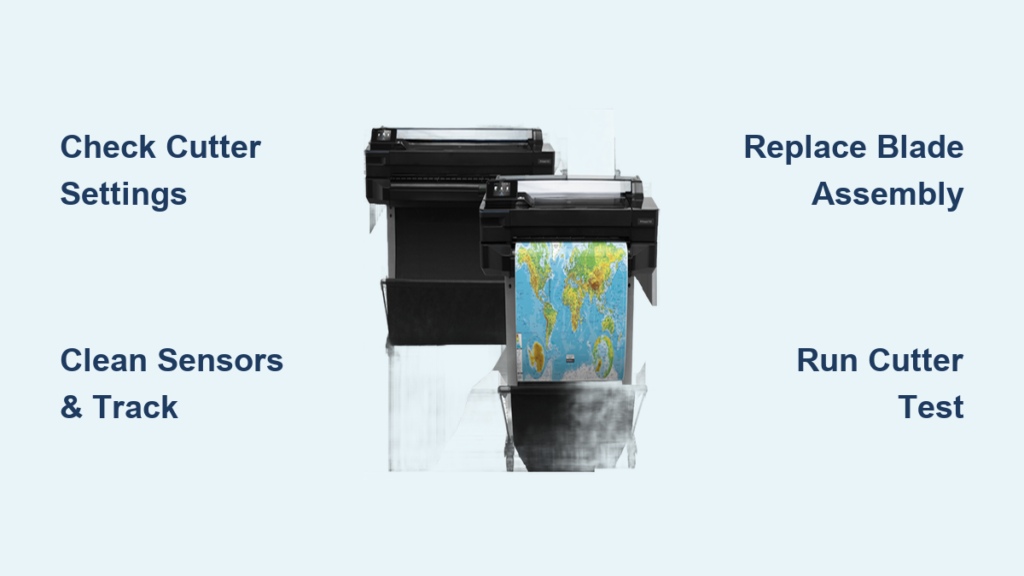
Dust, media particles, and adhesive residue on optical sensors cause intermittent cutter failures that perplex many technicians. Power off your T520, open the top cover, and locate the small black sensors near the cutter path. Using a lint-free cloth slightly dampened with isopropyl alcohol, gently clean each sensor lens—never touch the lenses directly with your fingers as oils will cause further issues. While cleaning, inspect the entire cutter track for debris buildup, especially near the home position sensor. Use compressed air to blow out stubborn particles, but maintain at least 6 inches distance to avoid forcing debris deeper into mechanisms. This 10-minute cleaning process resolves most inconsistent cutter behavior without requiring part replacements.
Replace the Worn Cutter Blade Assembly Properly
When cleaning and settings adjustments fail to restore performance, blade replacement becomes necessary. Genuine HP Part #CQ890-67038 contains the complete cutter blade assembly pre-calibrated for optimal performance. Before starting, power down and unplug your T520. Open the top cover and locate the cutter assembly near the print head carriage. Remove the two silver screws securing the blade housing, then carefully slide out the old blade assembly—exercise extreme caution as the edges are extremely sharp. Insert the new assembly until fully seated, ensuring proper alignment with the drive mechanism, then reassemble in reverse order. Never attempt to sharpen the existing blade; the precision engineering requires complete replacement for reliable cutting performance.
Prevent Future Cutter Failures with Smart Maintenance
Implement a Weekly Cutter Care Routine
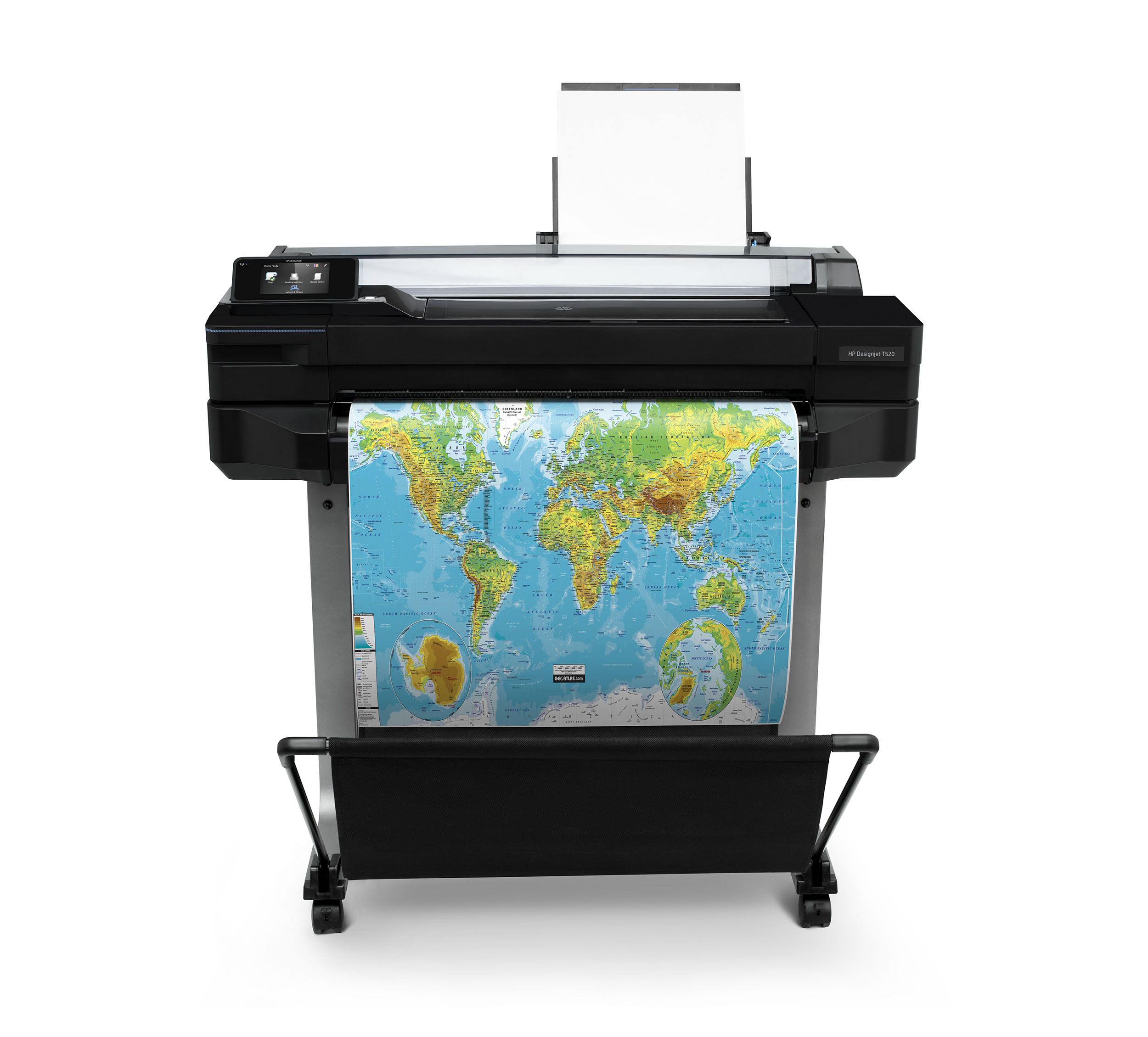
Establish these simple maintenance habits to extend your T520 cutter’s lifespan significantly. Every Monday, use compressed air to clear debris from the cutter track while the printer is powered off. On Wednesdays, inspect the blade assembly for adhesive buildup, especially if cutting vinyl media. Fridays should include a quick cutter test with scrap media to verify consistent performance. This routine takes less than five minutes weekly but prevents 80% of cutter failures. Keep a microfiber cloth and isopropyl alcohol readily available at your workstation for immediate cleaning when media residue appears.
Optimize Media Handling for Cutter Longevity
Different media types dramatically affect cutter wear—adjust your approach accordingly. For vinyl banners, use 65-75% cutting pressure to ensure clean cuts without excessive strain. Standard photo paper requires only 50-60% pressure for optimal results. Heavy canvas media needs increased pressure (80-85%) and slower cutting speeds. Most importantly, clean the blade immediately after cutting adhesive materials—dried residue rapidly degrades cutting performance. Never cut multiple media types without adjusting pressure settings; this single mistake accounts for more premature cutter failures than any other user error.
Maintain Ideal Environmental Conditions
Your workspace environment significantly impacts T520 cutter reliability. Maintain temperature between 59-86°F (15-30°C) and humidity between 20-80% non-condensing for optimal cutter performance. Position your printer away from other cutting and trimming stations to minimize airborne debris entering the mechanism. Place the T520 on a stable, vibration-free surface—shared workbenches with cutting tables often transmit vibrations that disrupt precise cutter operation. These environmental considerations seem minor but collectively extend cutter lifespan by 40-60% compared to printers in suboptimal conditions.
Know When to Seek Professional Service
While most cutter issues are DIY-fixable, certain problems require professional intervention. Contact HP support immediately if you experience repeated Error 86:01 after cleaning, notice the cutter motor becoming hot to the touch during operation, observe physical damage to cutter tracks or gears, or encounter multiple component failures simultaneously. Attempting advanced repairs without proper training can void warranties and create more expensive problems. Keep genuine HP parts on hand for simple replacements, but recognize your technical limits—skilled technicians can often resolve complex cutter failures in less time than you’d spend troubleshooting advanced issues.
Remember: A properly maintained HP DesignJet T520 cutter should slice through standard media with smooth, consistent results. When basic cleaning and settings adjustments don’t restore performance, the blade assembly has likely reached end-of-life and requires replacement. Keep a spare blade assembly in your maintenance kit—the 15-minute replacement process prevents costly downtime during critical print jobs. Implement these solutions today to transform your unreliable cutter into a precision cutting machine that delivers professional results consistently.